 HitLight
Event Lighting FXSTROBE100
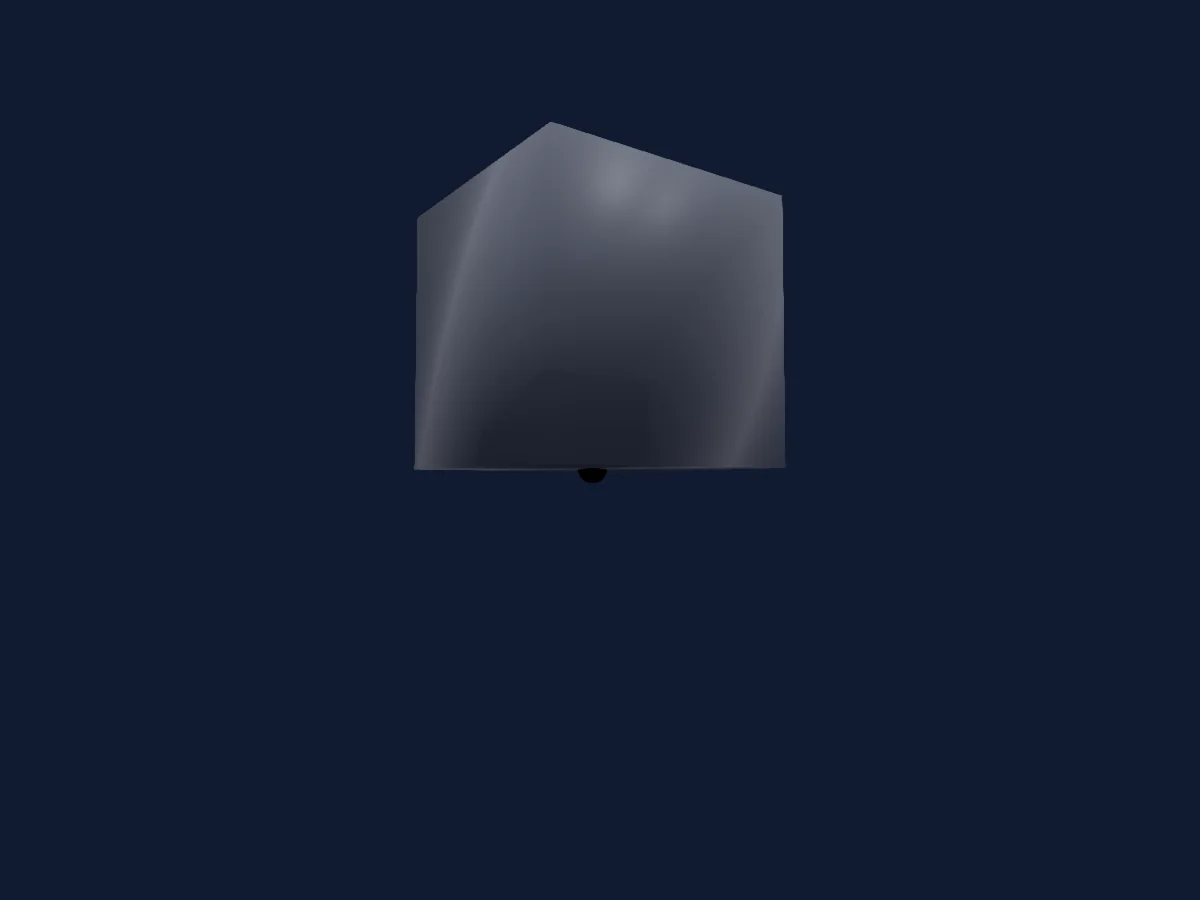
DMX-Tabelle, 3 DMX-Modi und eine 3D-Vorschau. 8 / 12 / 48 DMX-Kanäle.
Was er kann
- Zusätzliche LED-Farben
- RGB-Farbmischung
- Farbrad
- Dimmer
DMX-Modi und Kanaltabellen
| Modus | Kanäle | In HitLight |
|---|---|---|
| 8 Channel Mode | 8 | Bereit in HitLight |
| 12 Channel Mode | 12 | Bereit in HitLight |
| 48 Channel Mode | 48 | Bereit in HitLight |
8 Channel Mode
Bereit in HitLight8 DMX-Kanäle · Diese Tabelle als CSV herunterladen
| Kanal | Funktion | Standard | DMX-Werte |
|---|---|---|---|
| 1 | Dimmer | 0 | 0–255 |
| 2 | Shutter1Strobe | 0 | 5 Wertebereiche
|
| 3 | Dimmer | 0 | 0–255 |
| 4 | Shutter1Strobe | 0 | 5 Wertebereiche
|
| 5 | Animation Wheel1Macro | 0 | 0–255 |
| 6 | Animation System1Macro | 0 | 2 Wertebereiche
|
| 7 | Color Macro1 | 0 | 0–255 |
| 8 | Color Macro1Rate | 0 | 2 Wertebereiche
|
12 Channel Mode
Bereit in HitLight12 DMX-Kanäle · Diese Tabelle als CSV herunterladen
| Kanal | Funktion | Standard | DMX-Werte |
|---|---|---|---|
| 1 | Dimmer | 0 | 0–255 |
| 2 | Shutter1Strobe | 0 | 5 Wertebereiche
|
| 3 | Dimmer | 0 | 0–255 |
| 4 | Shutter1Strobe | 0 | 5 Wertebereiche
|
| 5 | Color RGBRed | 0 | 0–255 |
| 6 | Color RGBGreen | 0 | 0–255 |
| 7 | Color RGBBlue | 0 | 0–255 |
| 8 | White | 0 | 0–255 |
| 9 | Animation Wheel1Macro | 0 | 0–255 |
| 10 | Animation System1Macro | 0 | 2 Wertebereiche
|
| 11 | Color Macro1 | 0 | 0–255 |
| 12 | Color Macro1Rate | 0 | 2 Wertebereiche
|
48 Channel Mode
Bereit in HitLight48 DMX-Kanäle · Diese Tabelle als CSV herunterladen
| Kanal | Funktion | Standard | DMX-Werte |
|---|---|---|---|
| 1 | Dimmer | 0 | 0–255 |
| 2 | Shutter1Strobe | 63 | 5 Wertebereiche
|
| 3 | Dimmer | 0 | 0–255 |
| 4 | Shutter1Strobe | 63 | 5 Wertebereiche
|
| 5 | Color RGBRed | 0 | 0–255 |
| 6 | Color RGBGreen | 0 | 0–255 |
| 7 | Color RGBBlue | 0 | 0–255 |
| 8 | White | 0 | 0–255 |
| 9 | Animation Wheel1Macro | 0 | 0–255 |
| 10 | Animation System1Macro | 0 | 2 Wertebereiche
|
| 11 | Animation Wheel1Macro | 0 | 0–255 |
| 12 | Animation System1Macro | 0 | 2 Wertebereiche
|
| 13 | Dimmer | 0 | 0–255 |
| 14 | Dimmer | 0 | 0–255 |
| 15 | Dimmer | 0 | 0–255 |
| 16 | Dimmer | 0 | 0–255 |
| 17 | Color RGBRed | 0 | 0–255 |
| 18 | Color RGBGreen | 0 | 0–255 |
| 19 | Color RGBBlue | 0 | 0–255 |
| 20 | White | 0 | 0–255 |
| 21 | Color RGBRed | 0 | 0–255 |
| 22 | Color RGBGreen | 0 | 0–255 |
| 23 | Color RGBBlue | 0 | 0–255 |
| 24 | White | 0 | 0–255 |
| 25 | Color RGBRed | 0 | 0–255 |
| 26 | Color RGBGreen | 0 | 0–255 |
| 27 | Color RGBBlue | 0 | 0–255 |
| 28 | White | 0 | 0–255 |
| 29 | Color RGBRed | 0 | 0–255 |
| 30 | Color RGBGreen | 0 | 0–255 |
| 31 | Color RGBBlue | 0 | 0–255 |
| 32 | White | 0 | 0–255 |
| 33 | Color RGBRed | 0 | 0–255 |
| 34 | Color RGBGreen | 0 | 0–255 |
| 35 | Color RGBBlue | 0 | 0–255 |
| 36 | White | 0 | 0–255 |
| 37 | Color RGBRed | 0 | 0–255 |
| 38 | Color RGBGreen | 0 | 0–255 |
| 39 | Color RGBBlue | 0 | 0–255 |
| 40 | White | 0 | 0–255 |
| 41 | Color RGBRed | 0 | 0–255 |
| 42 | Color RGBGreen | 0 | 0–255 |
| 43 | Color RGBBlue | 0 | 0–255 |
| 44 | White | 0 | 0–255 |
| 45 | Color RGBRed | 0 | 0–255 |
| 46 | Color RGBGreen | 0 | 0–255 |
| 47 | Color RGBBlue | 0 | 0–255 |
| 48 | White | 0 | 0–255 |
Event Lighting FXSTROBE100 in HitLight verwenden
- Öffne Scheinwerfer hinzufügen und suche nach Event Lighting FXSTROBE100.
- Wähle den DMX-Modus, der im Menü des Scheinwerfers eingestellt ist. HitLight gibt ihm die niedrigste freie Startadresse in seinem Universum, die zur Kanalzahl des Modus passt.
- Prüfe Modus und Steuerung an deinem echten Scheinwerfer, bevor du ihn live einsetzt.
Ähnliche Scheinwerfer
Strobe
Event Lighting PAR12H
1 / 2 / 3 / 4 / 6 / 8 / 12 / 14 DMX-Kanäle
Moving Head
Event Lighting HAVOCH200
17 / 21 DMX-Kanäle
Effektlicht
Event Lighting BAR224FXL - 53 channel
53 DMX-Kanäle
PAR
Event Lighting OPERAZ400VWF
1 / 2 / 3 / 4 / 11 DMX-Kanäle
PAR
Event Lighting WIP1320
31 DMX-Kanäle
Moving Head
Event Lighting M1S80W
11 / 13 / 17 / 18 DMX-Kanäle
Die Tabellen stammen aus der GDTF-Beschreibung des Scheinwerfers, umgewandelt für die HitLight-Bibliothek. HitLight ist nicht mit Event Lighting verbunden.