Skip to content
HitLight
ACME · PAR

ACME LINEFORCE 10 IP (CYC 10 IP)

DMX chart, 2 DMX modes and a 3D preview. 9 / 16 DMX channels.
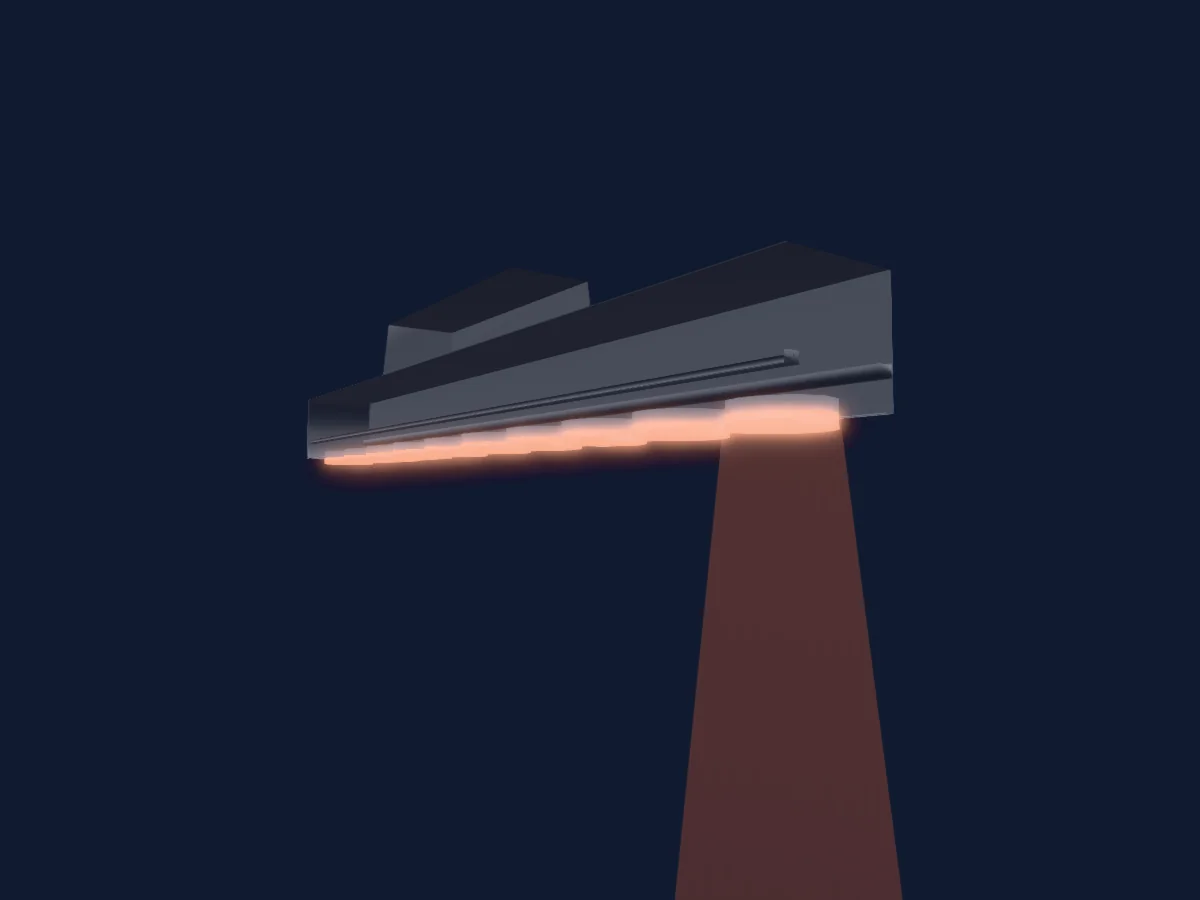
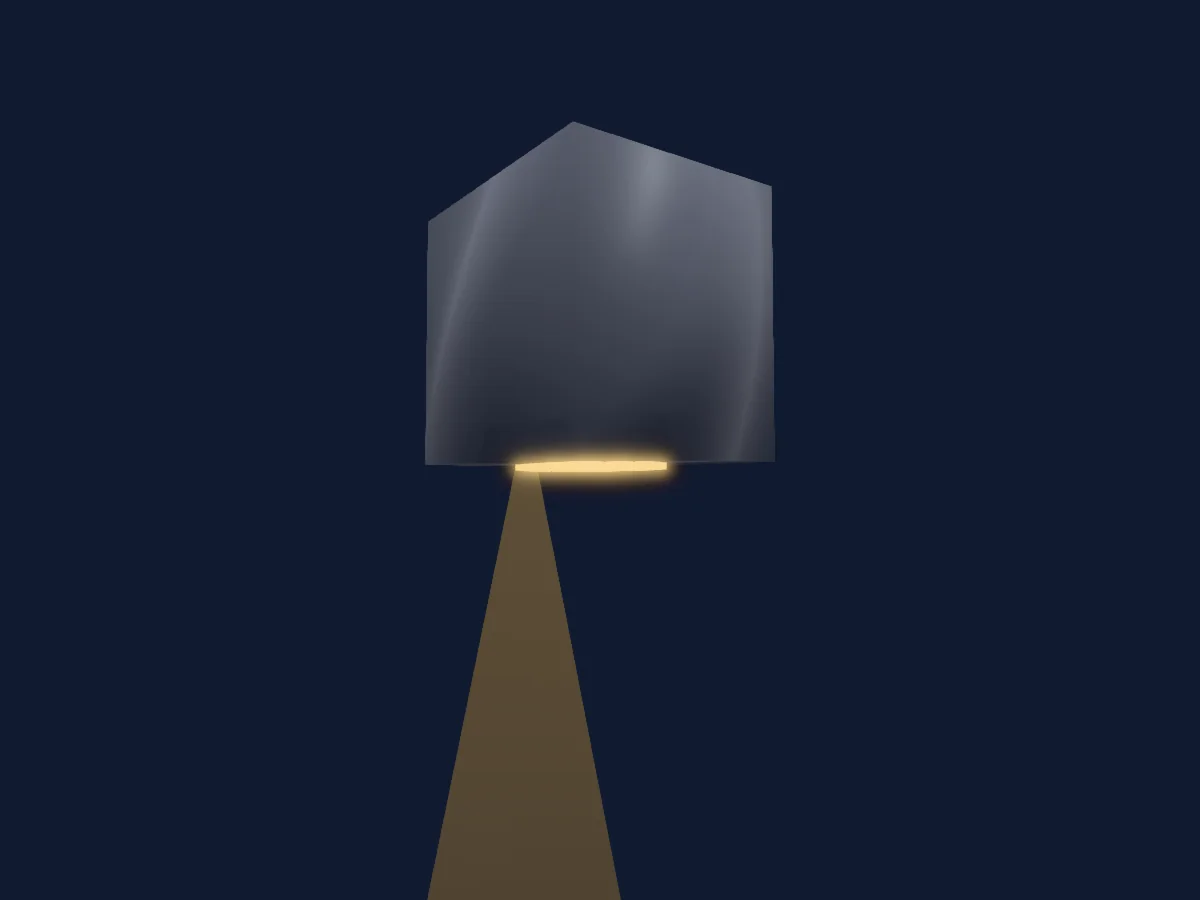
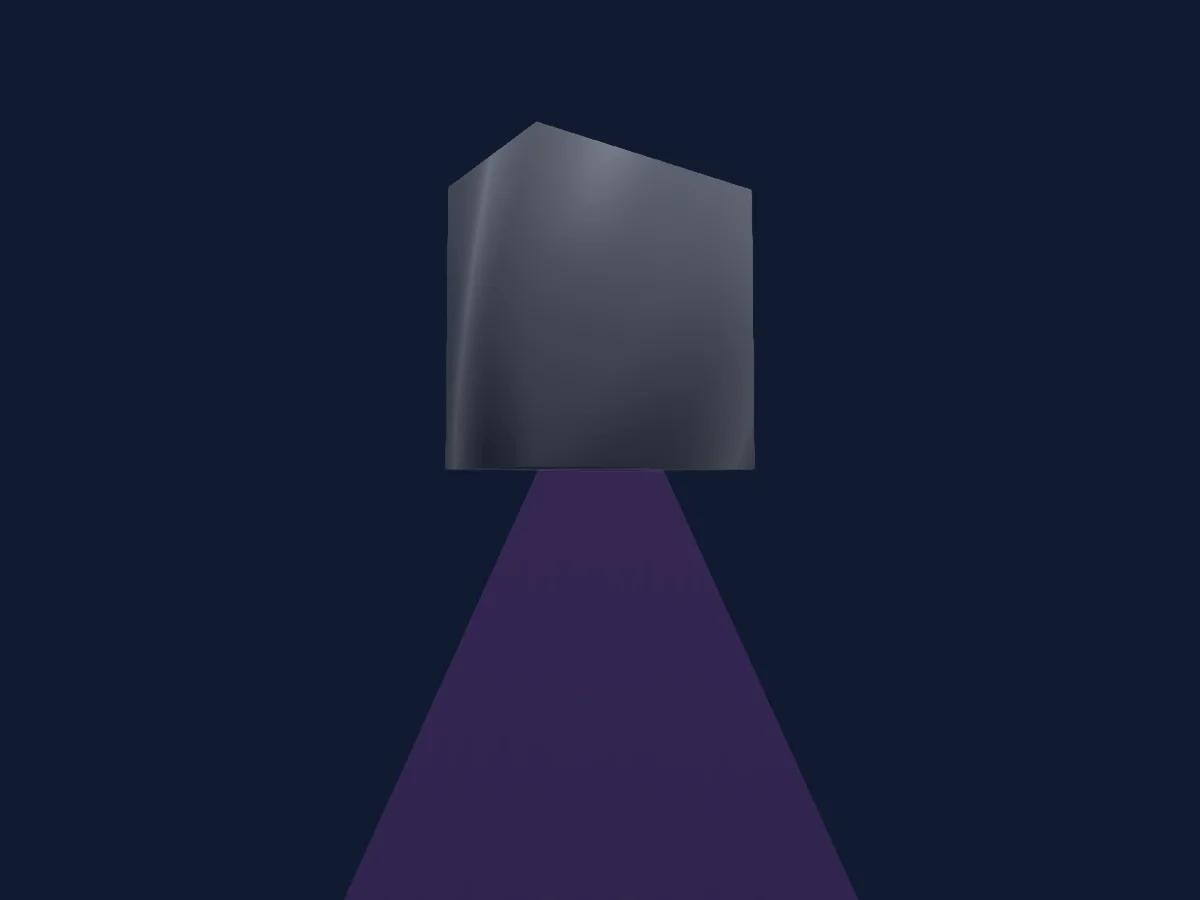
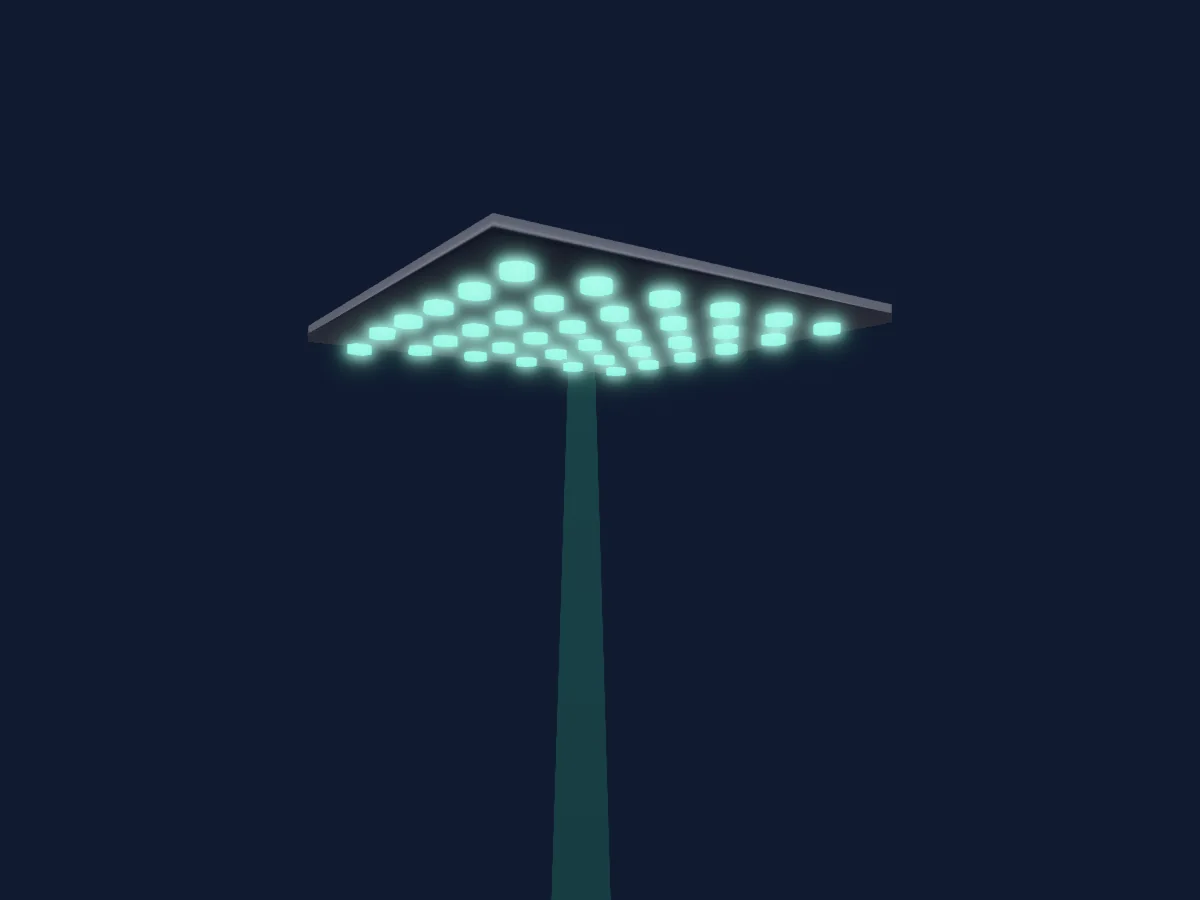
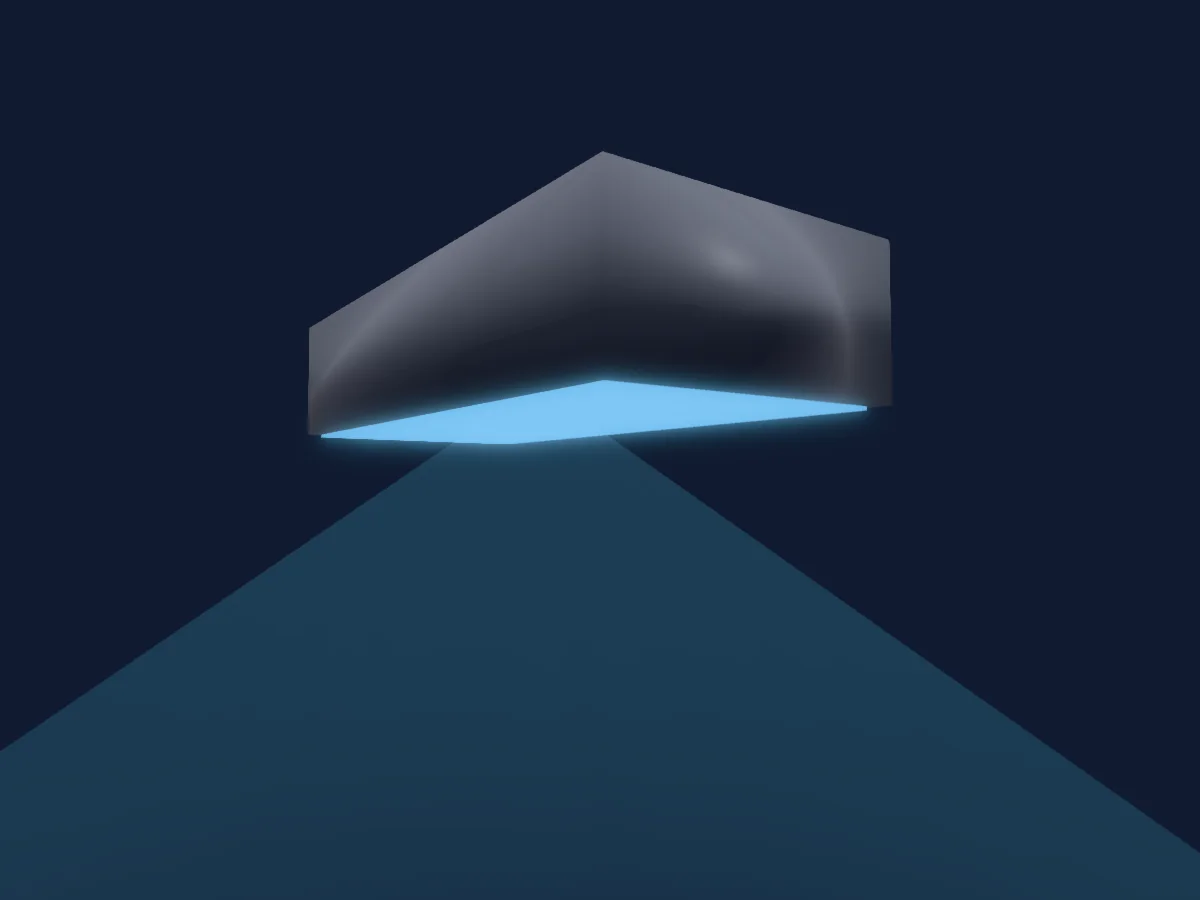
ACME LINEFORCE 10 IP (CYC 10 IP) rendered in HitLight

What it can do

  • Frost
  • Extra LED colours
  • RGB colour mixing
  • Colour temperature
  • Colour wheel
  • Strobe
  • Dimmer

Safety-relevant functions: Strobe. Check how these behave on your own fixture before a show.

DMX modes and channel charts

DMX modes of ACME LINEFORCE 10 IP (CYC 10 IP)
ModeChannelsIn HitLight
Mode 1 79 DMX9Ready in HitLight
Mode 2 16 DMX16Ready in HitLight

Mode 1 79 DMX

Ready in HitLight

9 DMX channels · Download this chart as CSV

DMX channel chart for Mode 1 79 DMX
ChannelFunctionDefaultDMX values
1Function0
40 value ranges
  • 0–29 Null 1
  • 30–39 Linear
  • 40–49 Square law
  • 50–59 Inv SQ law
  • 60–69 S curve
  • 70–79 Standard
  • 80–89 Quiet
  • 90–99 Theatre
  • 100–109 Frequency Setting Enable
  • 110–119 Frequency Setting Disable
  • 120–122 Null
  • 123–123 900Hz
  • 124–124 1000Hz
  • 125–125 1100Hz
  • 126–126 1200Hz
  • 127–127 1300Hz
  • 128–128 1400Hz
  • 129–129 1500Hz
  • 130–130 2500Hz
  • 131–131 4000Hz
  • 132–132 5000Hz
  • 133–133 6000Hz
  • 134–134 10000Hz
  • 135–135 15000Hz
  • 136–136 20000Hz
  • 137–137 25000Hz
  • 138–139 Null
  • 140–159 Null2
  • 160–169 On
  • 170–179 Off
  • 180–199 Null 3
  • 200–209 Speed Fast
  • 210–219 Speed Smooth
  • 220–229 Tungsten lamp
  • 230–233 Null4
  • 234–235 Pixel Order On
  • 236–237 Pixel Order Off
  • 238–239 Start Mode High
  • 240–241 Start Mode Low
  • 242–255 Null5
2Shutter / Strobe8
10 value ranges
  • 0–7 Close
  • 8–15 Open1
  • 16–131 Strobe
  • 132–139 Open2
  • 140–181 Strobe Pulse Close
  • 182–189 Open3
  • 190–231 Strobe Pulse Open
  • 232–239 Open 4
  • 240–247 Strobe Random
  • 248–255 Open5
3Dimmer00–255
4Dimmer Fine0Fine byte of Dimmer
5C TO00–255
6Frost100–255
7Frost200–255
8Frost300–255
9Frost400–255

Mode 2 16 DMX

Ready in HitLight

16 DMX channels · Download this chart as CSV

DMX channel chart for Mode 2 16 DMX
ChannelFunctionDefaultDMX values
1Function0
40 value ranges
  • 0–29 Null 1
  • 30–39 Linear
  • 40–49 Square law
  • 50–59 Inv SQ law
  • 60–69 S curve
  • 70–79 Standard
  • 80–89 Quiet
  • 90–99 Theatre
  • 100–109 Frequency Setting Enable
  • 110–119 Frequency Setting Disable
  • 120–122 Null
  • 123–123 900Hz
  • 124–124 1000Hz
  • 125–125 1100Hz
  • 126–126 1200Hz
  • 127–127 1300Hz
  • 128–128 1400Hz
  • 129–129 1500Hz
  • 130–130 2500Hz
  • 131–131 4000Hz
  • 132–132 5000Hz
  • 133–133 6000Hz
  • 134–134 10000Hz
  • 135–135 15000Hz
  • 136–136 20000Hz
  • 137–137 25000Hz
  • 138–139 Null
  • 140–159 Null2
  • 160–169 On
  • 170–179 Off
  • 180–199 Null 3
  • 200–209 Speed Fast
  • 210–219 Speed Smooth
  • 220–229 Tungsten lamp
  • 230–233 Null4
  • 234–235 Pixel Order On
  • 236–237 Pixel Order Off
  • 238–239 Start Mode High
  • 240–241 Start Mode Low
  • 242–255 Null5
2Shutter / Strobe8
10 value ranges
  • 0–7 Close
  • 8–15 Open1
  • 16–131 Strobe
  • 132–139 Open2
  • 140–181 Strobe Pulse Close
  • 182–189 Open3
  • 190–231 Strobe Pulse Open
  • 232–239 Open 4
  • 240–247 Strobe Random
  • 248–255 Open5
3Dimmer00–255
4Dimmer Fine0Fine byte of Dimmer
5C TO00–255
6Color Wheel0
51 value ranges
  • 0–9 Open (wheel slot 1)
  • 10–14 Color1 (wheel slot 2)
  • 15–19 Color2 (wheel slot 3)
  • 20–24 Color3 (wheel slot 4)
  • 25–29 Color4 (wheel slot 5)
  • 30–34 Color5 (wheel slot 6)
  • 35–39 Color6 (wheel slot 7)
  • 40–44 Color7 (wheel slot 8)
  • 45–49 Color8 (wheel slot 9)
  • 50–54 Color9 (wheel slot 10)
  • 55–59 Color10 (wheel slot 11)
  • 60–64 Color11 (wheel slot 12)
  • 65–69 Color12 (wheel slot 13)
  • 70–73 Color13 (wheel slot 14)
  • 74–78 Color14 (wheel slot 15)
  • 79–83 Color15 (wheel slot 16)
  • 84–88 Color16 (wheel slot 17)
  • 89–93 Color17 (wheel slot 18)
  • 94–98 Color18 (wheel slot 19)
  • 99–103 Color19 (wheel slot 20)
  • 104–108 Color20 (wheel slot 21)
  • 109–113 Color21 (wheel slot 22)
  • 114–118 Color22 (wheel slot 23)
  • 119–123 Color23 (wheel slot 24)
  • 124–128 Color24 (wheel slot 25)
  • 129–132 Color25 (wheel slot 26)
  • 133–137 Color26 (wheel slot 27)
  • 138–142 Color27 (wheel slot 28)
  • 143–147 Color28 (wheel slot 29)
  • 148–152 Color29 (wheel slot 30)
  • 153–157 Color30 (wheel slot 31)
  • 158–162 Color31 (wheel slot 32)
  • 163–167 Color32 (wheel slot 33)
  • 168–172 Color33 (wheel slot 34)
  • 173–177 Color34 (wheel slot 35)
  • 178–182 Color35 (wheel slot 36)
  • 183–187 Color36 (wheel slot 37)
  • 188–192 Color37 (wheel slot 38)
  • 193–196 Color38 (wheel slot 39)
  • 197–201 Color39 (wheel slot 40)
  • 202–206 Color40 (wheel slot 41)
  • 207–211 Color41 (wheel slot 42)
  • 212–216 Color42 (wheel slot 43)
  • 217–221 Color43 (wheel slot 44)
  • 222–226 Color44 (wheel slot 45)
  • 227–231 Color45 (wheel slot 46)
  • 232–236 Color46 (wheel slot 47)
  • 237–241 Color47 (wheel slot 48)
  • 242–246 Color48 (wheel slot 49)
  • 247–251 Color49 (wheel slot 50)
  • 252–255 Color50 (wheel slot 51)
7Color Macro10
15 value ranges
  • 8–23 Macro1
  • 24–41 Macro2
  • 42–58 Macro3
  • 59–75 Macro4
  • 76–92 Macro5
  • 93–109 Macro6
  • 110–126 Macro7
  • 127–143 Macro8
  • 144–160 Macro9
  • 161–177 Macro10
  • 178–194 Macro11
  • 195–211 Macro12
  • 212–228 Macro13
  • 229–245 Macro14
  • 246–255 Macro Rainbow
8Color Macro1Rate00–255
9Frost100–255
10Red2550–255
11Green2550–255
12Blue2550–255
13White00–255
14Color Add RY00–255
15Color Add C00–255
16UV00–255

Use the ACME LINEFORCE 10 IP (CYC 10 IP) in HitLight

  1. Open Add fixture and search for ACME LINEFORCE 10 IP (CYC 10 IP).
  2. Choose the DMX mode set in the fixture’s own menu. HitLight gives it the lowest free start address on its universe that fits the mode’s channel count.
  3. Check the mode and controls against your real fixture before live use.

Charts come from the fixture’s GDTF description as converted for the HitLight library. HitLight is not affiliated with ACME.

Patch it, then let the music run the lights.

HitLight finds these fixtures in its library, patches them on the next free address and previews your rig in 3D before a single light is plugged in.

Open HitLight ↗Download HitLight