 HitLight
Artfox Sky Beam LED 300
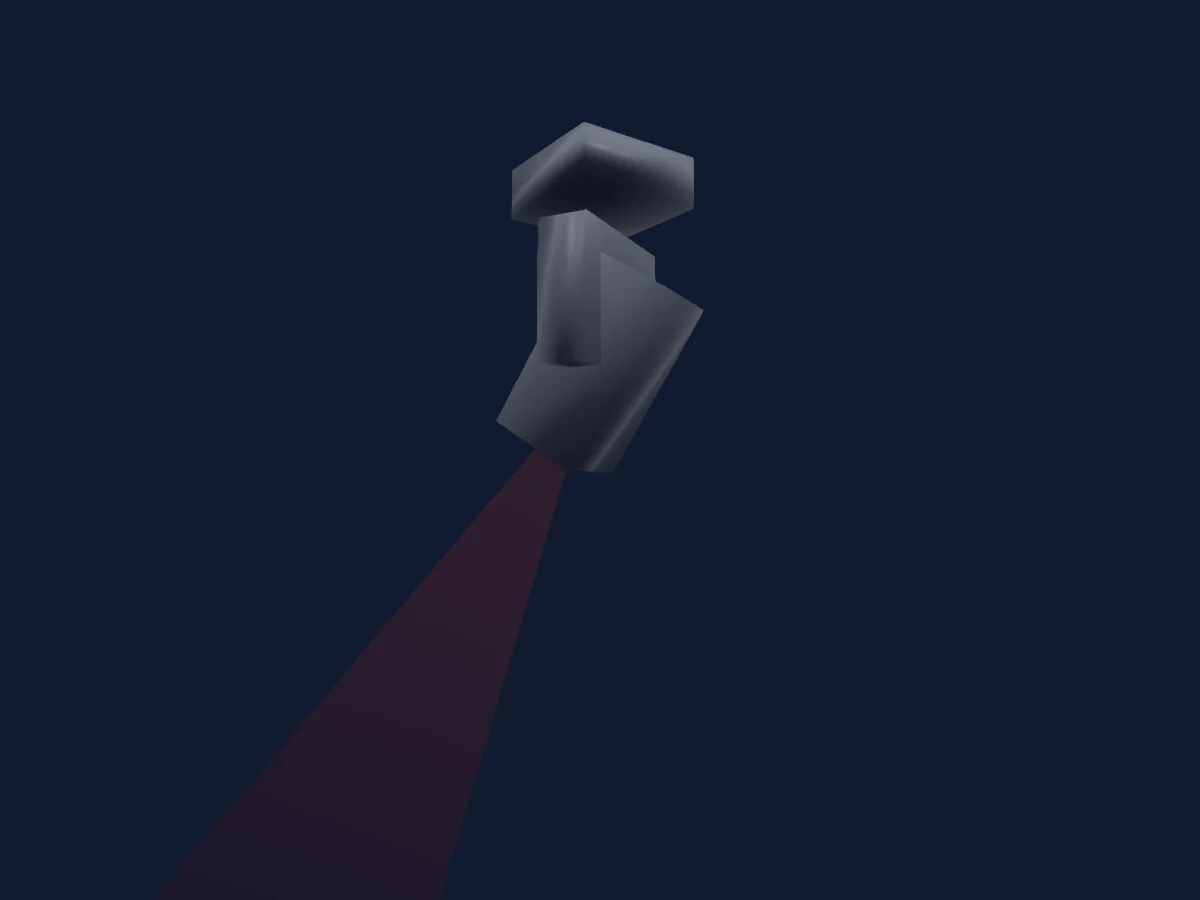
DMX chart, 1 DMX mode and a 3D preview. 25 DMX channels.
What it can do
- Focus
- Frost
- Prism
- Prism rotation
- Colour wheel
- Strobe
- Dimmer
- Pixel control
- Pan and tilt
- Gobos
DMX modes and channel charts
| Mode | Channels | In HitLight |
|---|---|---|
| Mode 1 | 25 | Ready in HitLight |
Mode 1
Ready in HitLight25 DMX channels · Download this chart as CSV
| Channel | Function | Default | DMX values |
|---|---|---|---|
| 1 | Pan | 0 | 0–255 |
| 2 | Pan Fine | 0 | Fine byte of Pan |
| 3 | Tilt | 0 | 0–255 |
| 4 | Tilt Fine | 0 | Fine byte of Tilt |
| 5 | Position Effect Rate | 0 | 0–255 |
| 6 | Dimmer | 0 | 0–255 |
| 7 | Shutter / Strobe | 0 | 3 value ranges
|
| 8 | Color Wheel | 0 | 0–255 |
| 9 | Color Wheel Fine | 0 | Fine byte of Color Wheel |
| 10 | Gobo | 0 | 0–255 |
| 11 | Gobo 2 | 0 | 0–255 |
| 12 | Gobo2Select Spin | 0 | 0–255 |
| 13 | Focus | 0 | 0–255 |
| 14 | Prism | 0 | 0–255 |
| 15 | Prism | 0 | 0–255 |
| 16 | Prism Rotation | 0 | 0–255 |
| 17 | Frost1 | 0 | 0–255 |
| 18 | Dimmer | 0 | 0–255 |
| 19 | Shutter / Strobe | 0 | 0–255 |
| 20 | Red | 0 | 0–255 |
| 21 | Green | 0 | 0–255 |
| 22 | Blue | 0 | 0–255 |
| 23 | White | 0 | 0–255 |
| 24 | Color Macro1 | 0 | 0–255 |
| 25 | Autoauto | 0 | 3 value ranges
|
Use the Artfox Sky Beam LED 300 in HitLight
- Open Add fixture and search for Artfox Sky Beam LED 300.
- Choose the DMX mode set in the fixture’s own menu. HitLight gives it the lowest free start address on its universe that fits the mode’s channel count.
- Check the mode and controls against your real fixture before live use.
Related fixtures
Moving head
Artfox Ostar Eye K18
20 / 40 DMX channels

Moving head
Artfox Solar M
17 / 19 / 31 DMX channels
Moving head
Artfox Matrix Hybrid CMY 460
26 DMX channels
Moving head
Artfox CMY 460
26 DMX channels
Moving head
Artfox Sky Beam LED 300W
25 DMX channels
Moving head
Artfox KingWash 19QX
19 / 27 DMX channels
Charts come from the fixture’s GDTF description as converted for the HitLight library. HitLight is not affiliated with Artfox.