 HitLight
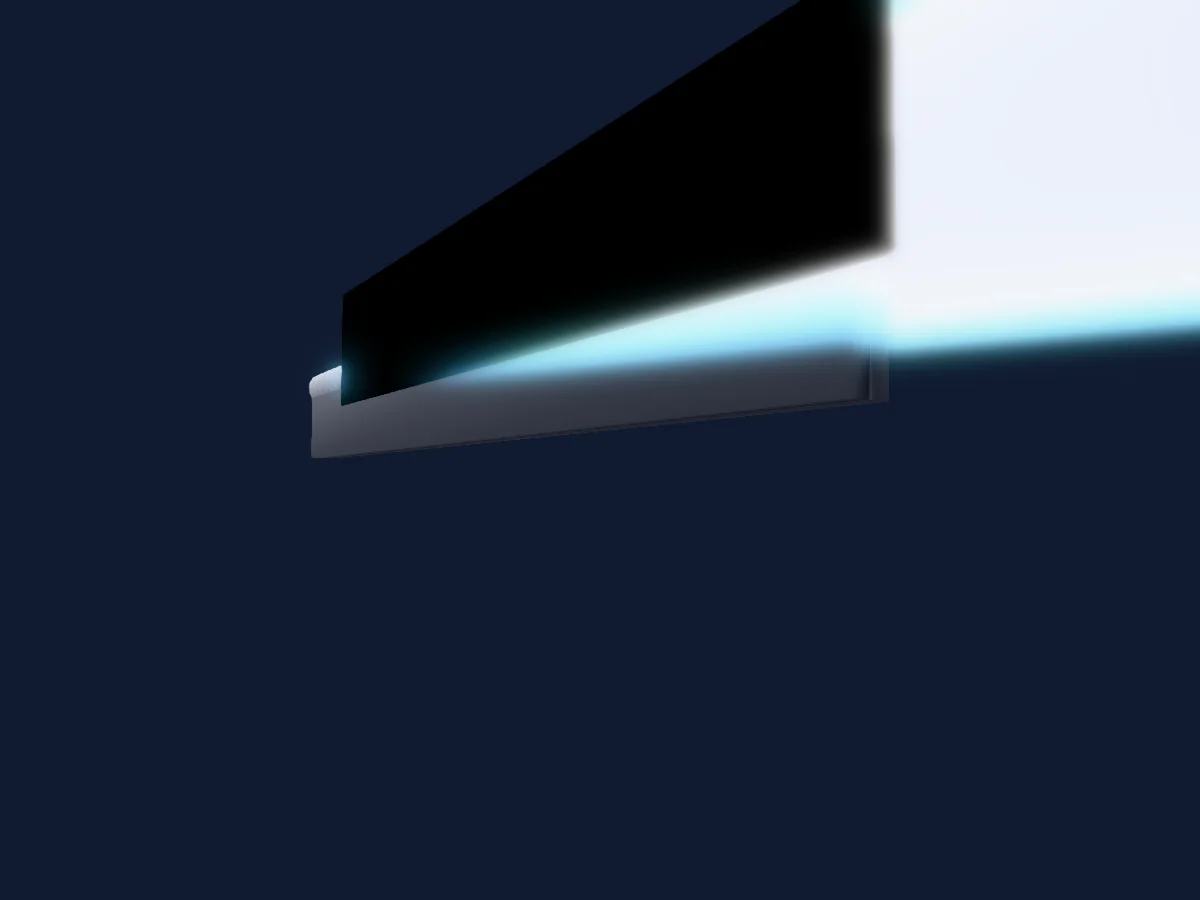
FOS Technologies Pixel Line 80
DMX chart, 2 DMX modes and a 3D preview. 3 DMX channels.
What it can do
- RGB colour mixing
DMX modes and channel charts
| Mode | Channels | In HitLight |
|---|---|---|
| Mode 1- DMX | 3 | Ready in HitLight |
| Mode 2- ArtNet | 3 | Ready in HitLight |
Mode 1- DMX
Ready in HitLight3 DMX channels · Download this chart as CSV
| Channel | Function | Default | DMX values |
|---|---|---|---|
| 1 | Red | 255 | 0–255 |
| 2 | Green | 255 | 0–255 |
| 3 | Blue | 255 | 0–255 |
Mode 2- ArtNet
Ready in HitLight3 DMX channels · Download this chart as CSV
| Channel | Function | Default | DMX values |
|---|---|---|---|
| 1 | Red | 255 | 0–255 |
| 2 | Green | 255 | 0–255 |
| 3 | Blue | 255 | 0–255 |
Use the FOS Technologies Pixel Line 80 in HitLight
- Open Add fixture and search for FOS Technologies Pixel Line 80.
- Choose the DMX mode set in the fixture’s own menu. HitLight gives it the lowest free start address on its universe that fits the mode’s channel count.
- Check the mode and controls against your real fixture before live use.
Related fixtures
LED bar
FOS Technologies FOS Pixel Bar IP65
5 / 10 DMX channels
Moving head
FOS Technologies FOS Nitro BSW
15 / 17 DMX channels
PAR
FOS Technologies F3 PRo
21 DMX channels
Moving head
FOS Technologies Scorpio Wash
26 / 38 / 66 DMX channels
PAR
FOS Technologies FOS Bar Pente
28 / 100 DMX channels
Strobe
FOS Technologies FOS IQ Par
30 DMX channels
Charts come from the fixture’s GDTF description as converted for the HitLight library. HitLight is not affiliated with FOS Technologies.