 HitLight
LitePanels Studio X2
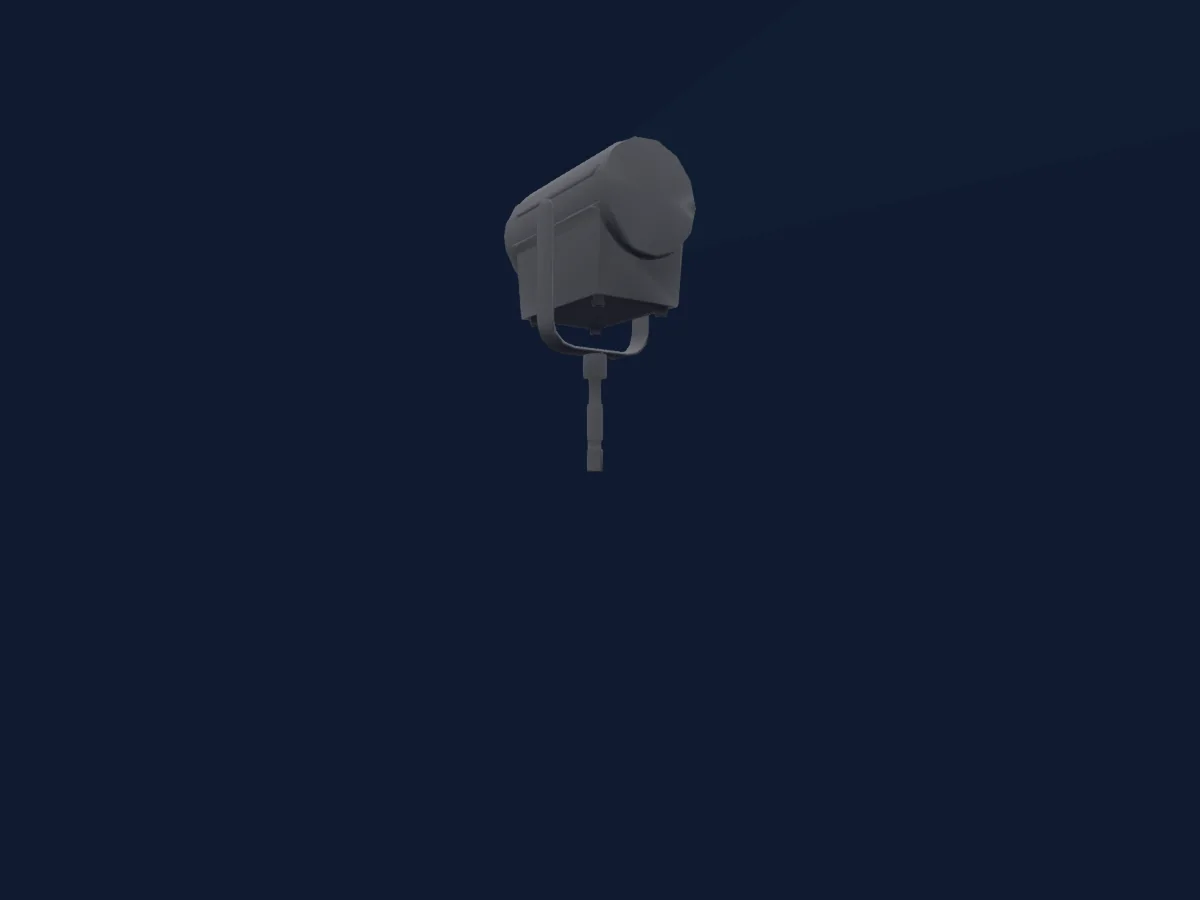
DMX chart, 4 DMX modes and a 3D preview. 1 / 2 DMX channels.
What it can do
- Dimmer
DMX modes and channel charts
| Mode | Channels | In HitLight |
|---|---|---|
| 8 Bit Daylight | 1 | Ready in HitLight |
| 8 Bit Tungsten | 1 | Ready in HitLight |
| 16 Bit Daylight | 2 | Ready in HitLight |
| 16 Bit Tungsten | 2 | Ready in HitLight |
8 Bit Daylight
Ready in HitLight1 DMX channel · Download this chart as CSV
| Channel | Function | Default | DMX values |
|---|---|---|---|
| 1 | Dimmer | 0 | 0–255 |
8 Bit Tungsten
Ready in HitLight1 DMX channel · Download this chart as CSV
| Channel | Function | Default | DMX values |
|---|---|---|---|
| 1 | Dimmer | 0 | 0–255 |
16 Bit Daylight
Ready in HitLight2 DMX channels · Download this chart as CSV
| Channel | Function | Default | DMX values |
|---|---|---|---|
| 1 | Dimmer | 0 | 0–255 |
| 2 | Dimmer Fine | 0 | Fine byte of Dimmer |
16 Bit Tungsten
Ready in HitLight2 DMX channels · Download this chart as CSV
| Channel | Function | Default | DMX values |
|---|---|---|---|
| 1 | Dimmer | 0 | 0–255 |
| 2 | Dimmer Fine | 0 | Fine byte of Dimmer |
Use the LitePanels Studio X2 in HitLight
- Open Add fixture and search for LitePanels Studio X2.
- Choose the DMX mode set in the fixture’s own menu. HitLight gives it the lowest free start address on its universe that fits the mode’s channel count.
- Check the mode and controls against your real fixture before live use.
Related fixtures
Spot
LitePanels Studio X4
1 / 2 / 4 DMX channels
Spot
LitePanels Studio X5
1 / 2 / 4 DMX channels
Spot
LitePanels Studio X3
1 / 2 / 4 DMX channels
Spot
LitePanels Studio X7
1 / 2 / 4 DMX channels
Spot
LitePanels Studio X6
1 / 2 / 4 DMX channels
PAR
Litepanels Sola 4
2 DMX channels
Charts come from the fixture’s GDTF description as converted for the HitLight library. HitLight is not affiliated with Litepanels.