 HitLight
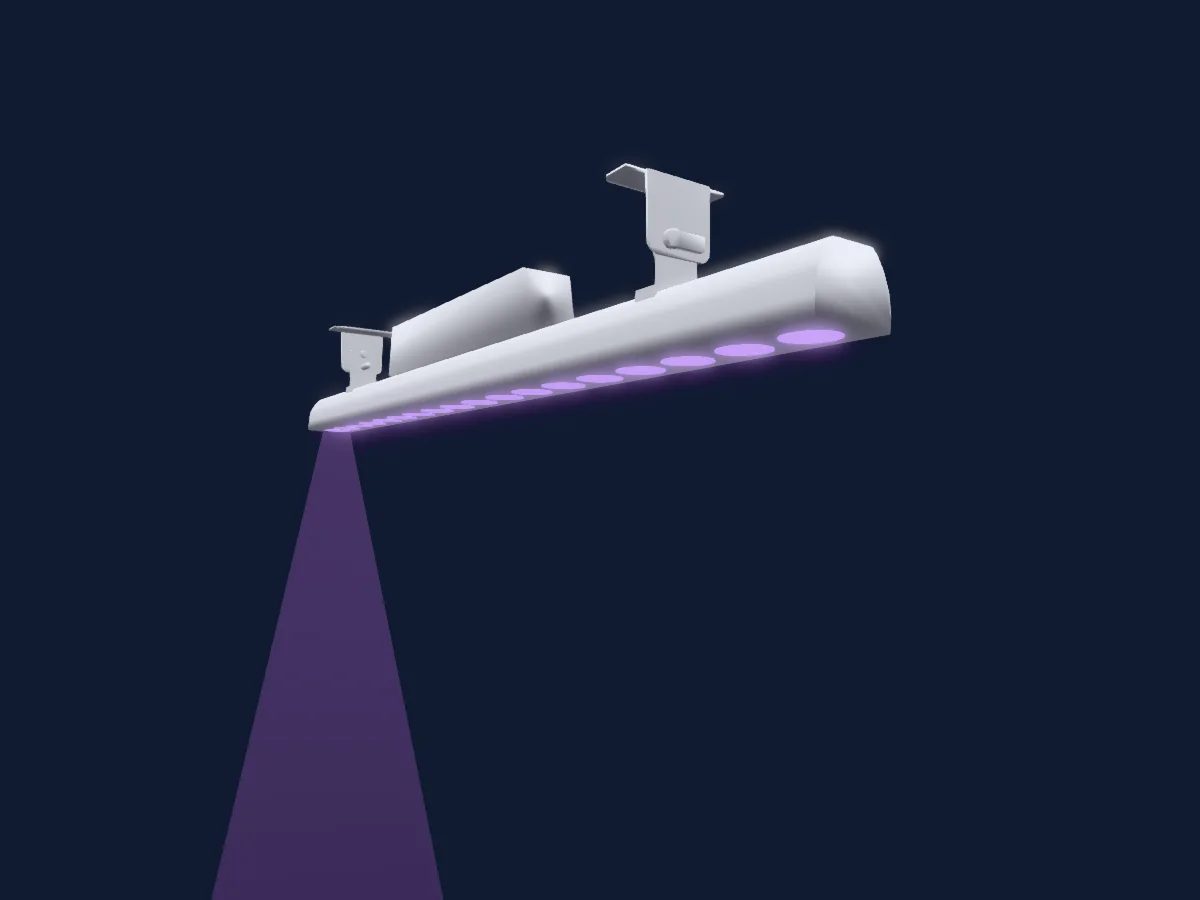
MegaLite N-E PixStrip H216
DMX chart, 3 DMX modes and a 3D preview. 6 / 17 / 108 DMX channels.
What it can do
- Extra LED colours
- RGB colour mixing
- Colour wheel
- Strobe
- Dimmer
- Pixel control
Safety-relevant functions: Strobe. Check how these behave on your own fixture before a show.
DMX modes and channel charts
| Mode | Channels | In HitLight |
|---|---|---|
| 6Ch Mode | 6 | Ready in HitLight |
| 17Ch Mode | 17 | Ready in HitLight |
| 108Ch Mode | 108 | Ready in HitLight |
6Ch Mode
Ready in HitLight6 DMX channels · Download this chart as CSV
| Channel | Function | Default | DMX values |
|---|---|---|---|
| 1 | Red | 255 | 0–255 |
| 2 | Green | 255 | 0–255 |
| 3 | Blue | 255 | 0–255 |
| 4 | White | 255 | 0–255 |
| 5 | Color Add RY | 0 | 0–255 |
| 6 | UV | 0 | 0–255 |
17Ch Mode
Ready in HitLight17 DMX channels · Download this chart as CSV
| Channel | Function | Default | DMX values |
|---|---|---|---|
| 1 | Dimmer | 0 | 0–255 |
| 2 | Shutter / Strobe | 0 | 5 value ranges
|
| 3 | Red | 255 | 0–255 |
| 4 | Green | 255 | 0–255 |
| 5 | Blue | 255 | 0–255 |
| 6 | White | 255 | 0–255 |
| 7 | Color Add RY | 0 | 0–255 |
| 8 | UV | 0 | 0–255 |
| 9 | Color Macro1 | 0 | 2 value ranges
|
| 10 | Color Mix MSpeed | 0 | 0–255 |
| 11 | Color RGBRed | 255 | 0–255 |
| 12 | Color RGBGreen | 255 | 0–255 |
| 13 | Color RGBBlue | 255 | 0–255 |
| 14 | White Count | 255 | 0–255 |
| 15 | Color RGBQuality | 0 | 0–255 |
| 16 | Color Effects1 | 0 | 0–255 |
| 17 | Function | 0 | 2 value ranges
|
108Ch Mode
Ready in HitLight108 DMX channels · Download this chart as CSV
| Channel | Function | Default | DMX values |
|---|---|---|---|
| 1 | Red | 255 | 0–255 |
| 2 | Green | 255 | 0–255 |
| 3 | Blue | 255 | 0–255 |
| 4 | White | 255 | 0–255 |
| 5 | Color Add RY | 0 | 0–255 |
| 6 | UV | 0 | 0–255 |
| 7 | Red | 255 | 0–255 |
| 8 | Green | 255 | 0–255 |
| 9 | Blue | 255 | 0–255 |
| 10 | White | 255 | 0–255 |
| 11 | Color Add RY | 0 | 0–255 |
| 12 | UV | 0 | 0–255 |
| 13 | Red | 255 | 0–255 |
| 14 | Green | 255 | 0–255 |
| 15 | Blue | 255 | 0–255 |
| 16 | White | 255 | 0–255 |
| 17 | Color Add RY | 0 | 0–255 |
| 18 | UV | 0 | 0–255 |
| 19 | Red | 255 | 0–255 |
| 20 | Green | 255 | 0–255 |
| 21 | Blue | 255 | 0–255 |
| 22 | White | 255 | 0–255 |
| 23 | Color Add RY | 0 | 0–255 |
| 24 | UV | 0 | 0–255 |
| 25 | Red | 255 | 0–255 |
| 26 | Green | 255 | 0–255 |
| 27 | Blue | 255 | 0–255 |
| 28 | White | 255 | 0–255 |
| 29 | Color Add RY | 0 | 0–255 |
| 30 | UV | 0 | 0–255 |
| 31 | Red | 255 | 0–255 |
| 32 | Green | 255 | 0–255 |
| 33 | Blue | 255 | 0–255 |
| 34 | White | 255 | 0–255 |
| 35 | Color Add RY | 0 | 0–255 |
| 36 | UV | 0 | 0–255 |
| 37 | Red | 255 | 0–255 |
| 38 | Green | 255 | 0–255 |
| 39 | Blue | 255 | 0–255 |
| 40 | White | 255 | 0–255 |
| 41 | Color Add RY | 0 | 0–255 |
| 42 | UV | 0 | 0–255 |
| 43 | Red | 255 | 0–255 |
| 44 | Green | 255 | 0–255 |
| 45 | Blue | 255 | 0–255 |
| 46 | White | 255 | 0–255 |
| 47 | Color Add RY | 0 | 0–255 |
| 48 | UV | 0 | 0–255 |
| 49 | Red | 255 | 0–255 |
| 50 | Green | 255 | 0–255 |
| 51 | Blue | 255 | 0–255 |
| 52 | White | 255 | 0–255 |
| 53 | Color Add RY | 0 | 0–255 |
| 54 | UV | 0 | 0–255 |
| 55 | Red | 255 | 0–255 |
| 56 | Green | 255 | 0–255 |
| 57 | Blue | 255 | 0–255 |
| 58 | White | 255 | 0–255 |
| 59 | Color Add RY | 0 | 0–255 |
| 60 | UV | 0 | 0–255 |
| 61 | Red | 255 | 0–255 |
| 62 | Green | 255 | 0–255 |
| 63 | Blue | 255 | 0–255 |
| 64 | White | 255 | 0–255 |
| 65 | Color Add RY | 0 | 0–255 |
| 66 | UV | 0 | 0–255 |
| 67 | Red | 255 | 0–255 |
| 68 | Green | 255 | 0–255 |
| 69 | Blue | 255 | 0–255 |
| 70 | White | 255 | 0–255 |
| 71 | Color Add RY | 0 | 0–255 |
| 72 | UV | 0 | 0–255 |
| 73 | Red | 255 | 0–255 |
| 74 | Green | 255 | 0–255 |
| 75 | Blue | 255 | 0–255 |
| 76 | White | 255 | 0–255 |
| 77 | Color Add RY | 0 | 0–255 |
| 78 | UV | 0 | 0–255 |
| 79 | Red | 255 | 0–255 |
| 80 | Green | 255 | 0–255 |
| 81 | Blue | 255 | 0–255 |
| 82 | White | 255 | 0–255 |
| 83 | Color Add RY | 0 | 0–255 |
| 84 | UV | 0 | 0–255 |
| 85 | Red | 255 | 0–255 |
| 86 | Green | 255 | 0–255 |
| 87 | Blue | 255 | 0–255 |
| 88 | White | 255 | 0–255 |
| 89 | Color Add RY | 0 | 0–255 |
| 90 | UV | 0 | 0–255 |
| 91 | Red | 255 | 0–255 |
| 92 | Green | 255 | 0–255 |
| 93 | Blue | 255 | 0–255 |
| 94 | White | 255 | 0–255 |
| 95 | Color Add RY | 0 | 0–255 |
| 96 | UV | 0 | 0–255 |
| 97 | Red | 255 | 0–255 |
| 98 | Green | 255 | 0–255 |
| 99 | Blue | 255 | 0–255 |
| 100 | White | 255 | 0–255 |
| 101 | Color Add RY | 0 | 0–255 |
| 102 | UV | 0 | 0–255 |
| 103 | Red | 255 | 0–255 |
| 104 | Green | 255 | 0–255 |
| 105 | Blue | 255 | 0–255 |
| 106 | White | 255 | 0–255 |
| 107 | Color Add RY | 0 | 0–255 |
| 108 | UV | 0 | 0–255 |
Use the MegaLite N-E PixStrip H216 in HitLight
- Open Add fixture and search for MegaLite N-E PixStrip H216.
- Choose the DMX mode set in the fixture’s own menu. HitLight gives it the lowest free start address on its universe that fits the mode’s channel count.
- Check the mode and controls against your real fixture before live use.
Related fixtures
PAR
MegaLite Baby Color Q70 IR
3 / 4 / 7 DMX channels
PAR
MegaLite Teclight BVW150
3 / 4 / 5 DMX channels
PAR
MegaLite Light Pipe 5Ft
4 / 7 DMX channels
PAR
MegaLite Light Pipe 3Ft
4 / 7 DMX channels
PAR
MegaLite Light Truss 10ft
4 / 7 DMX channels
PAR
MegaLite Light Pipe 8Ft
4 / 7 DMX channels
Charts come from the fixture’s GDTF description as converted for the HitLight library. HitLight is not affiliated with MegaLite.