 HitLight
NEXSTRALE STROM RAIL 80 IP
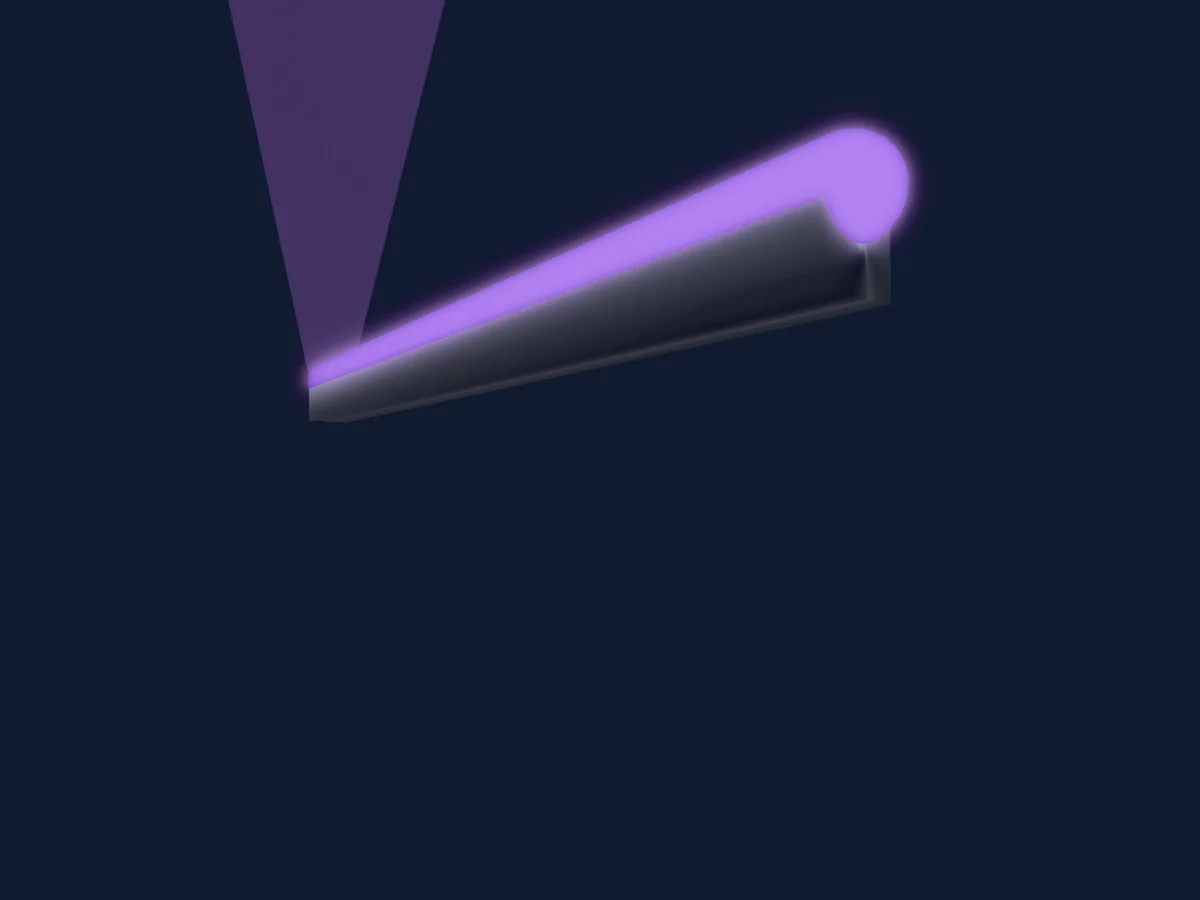
DMX chart, 4 DMX modes and a 3D preview. 3 / 8 DMX channels.
What it can do
- RGB colour mixing
- Dimmer
- Gobos
- Gobo rotation
DMX modes and channel charts
| Mode | Channels | In HitLight |
|---|---|---|
| 1X160 60CH | 3 | Ready in HitLight |
| 2X160 120CH | 3 | Ready in HitLight |
| 4X160 240CH | 3 | Ready in HitLight |
| 8CH | 8 | Ready in HitLight |
1X160 60CH
Ready in HitLight3 DMX channels · Download this chart as CSV
| Channel | Function | Default | DMX values |
|---|---|---|---|
| 1 | Red | 255 | 0–255 |
| 2 | Green | 255 | 0–255 |
| 3 | Blue | 255 | 0–255 |
2X160 120CH
Ready in HitLight3 DMX channels · Download this chart as CSV
| Channel | Function | Default | DMX values |
|---|---|---|---|
| 1 | Red | 255 | 0–255 |
| 2 | Green | 255 | 0–255 |
| 3 | Blue | 255 | 0–255 |
4X160 240CH
Ready in HitLight3 DMX channels · Download this chart as CSV
| Channel | Function | Default | DMX values |
|---|---|---|---|
| 1 | Red | 255 | 0–255 |
| 2 | Green | 255 | 0–255 |
| 3 | Blue | 255 | 0–255 |
8CH
Ready in HitLight8 DMX channels · Download this chart as CSV
| Channel | Function | Default | DMX values |
|---|---|---|---|
| 1 | Dimmer | 0 | 0–255 |
| 2 | Shutter / Strobe | 0 | 3 value ranges
|
| 3 | Red | 255 | 0–255 |
| 4 | Green | 255 | 0–255 |
| 5 | Blue | 255 | 0–255 |
| 6 | Gobo | 0 | 0–255 |
| 7 | Gobo 2 | 0 | 0–255 |
| 8 | Gobo Rotation | 0 | 0–255 |
Use the NEXSTRALE STROM RAIL 80 IP in HitLight
- Open Add fixture and search for NEXSTRALE STROM RAIL 80 IP.
- Choose the DMX mode set in the fixture’s own menu. HitLight gives it the lowest free start address on its universe that fits the mode’s channel count.
- Check the mode and controls against your real fixture before live use.
Related fixtures
PAR
NEXSTRALE STORM LINE FC IP
3 / 5 / 8 DMX channels
PAR
NEXSTRALE X-ARRAY IP
21 / 158 DMX channels
PAR
NEXSTRALE Lyster Par zoom 760 IP
4 / 5 / 7 / 13 DMX channels
PAR
NEXSTRALE ORION PAR 420 IP
2 / 3 / 5 / 8 / 11 / 15 DMX channels
PAR
NEXSTRALE ORION TUBE IP
3 / 5 / 10 / 12 / 20 / 40 / 80 / 85 DMX channels
PAR
NEXSTRALE LYSTER PAR 1920
6 / 10 / 16 / 23 DMX channels
Charts come from the fixture’s GDTF description as converted for the HitLight library. HitLight is not affiliated with NEXSTRALE.