 HitLight
OXO Light Multibeam
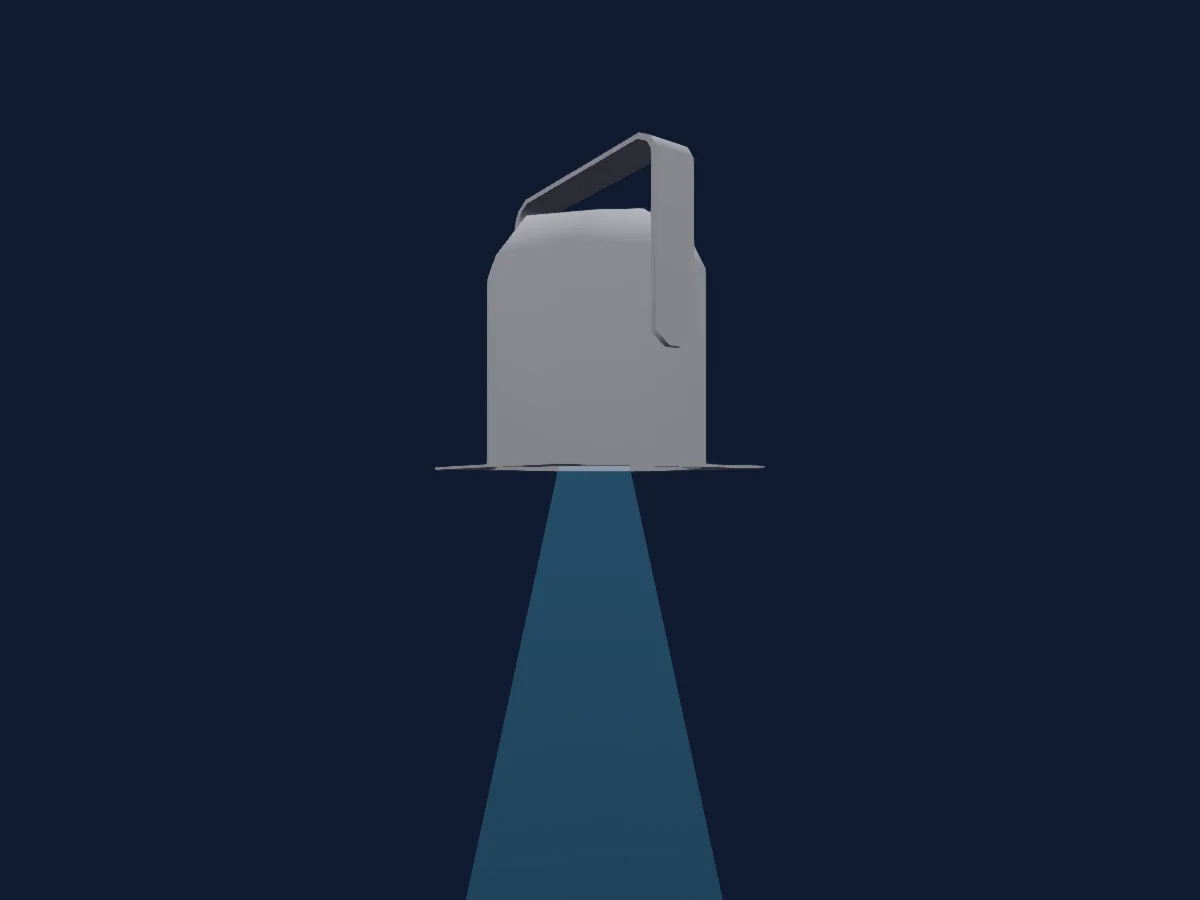
DMX chart, 1 DMX mode and a 3D preview. 5 DMX channels.
What it can do
- Extra LED colours
- RGB colour mixing
- Dimmer
DMX modes and channel charts
| Mode | Channels | In HitLight |
|---|---|---|
| Mode 4 RGBW Dim | 5 | Ready in HitLight |
Mode 4 RGBW Dim
Ready in HitLight5 DMX channels · Download this chart as CSV
| Channel | Function | Default | DMX values |
|---|---|---|---|
| 1 | Red | 255 | 0–255 |
| 2 | Green | 255 | 0–255 |
| 3 | Blue | 255 | 0–255 |
| 4 | White | 255 | 0–255 |
| 5 | Dimmer | 0 | 2 value ranges
|
Use the OXO Light Multibeam in HitLight
- Open Add fixture and search for OXO Light Multibeam.
- Choose the DMX mode set in the fixture’s own menu. HitLight gives it the lowest free start address on its universe that fits the mode’s channel count.
- Check the mode and controls against your real fixture before live use.
Venues with the OXO Light Multibeam
Their saved rigs list this fixture model. Confirm the current equipment with the venue.
- Source (La) Fontaine, France
Related fixtures
PAR
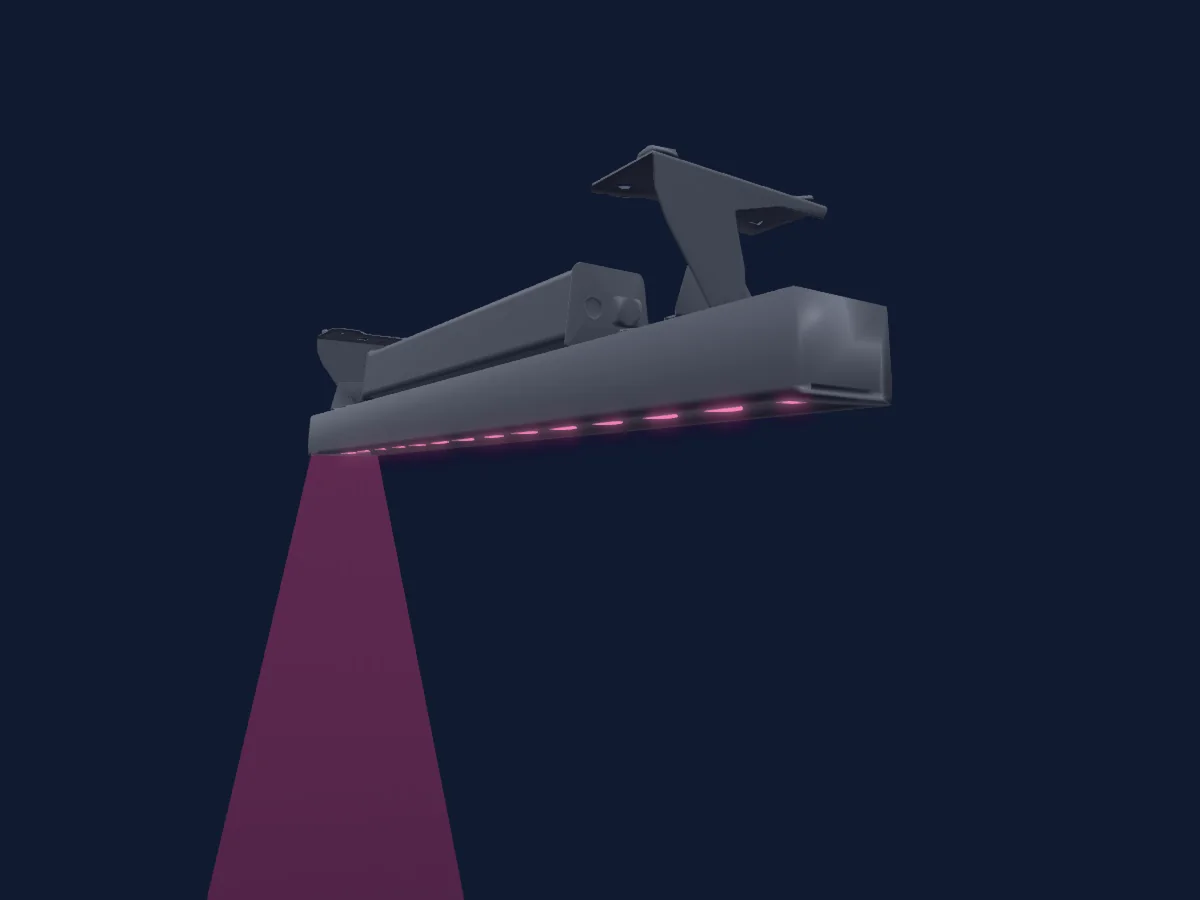
OXO Light Pixyline 150
4 DMX channels
PAR
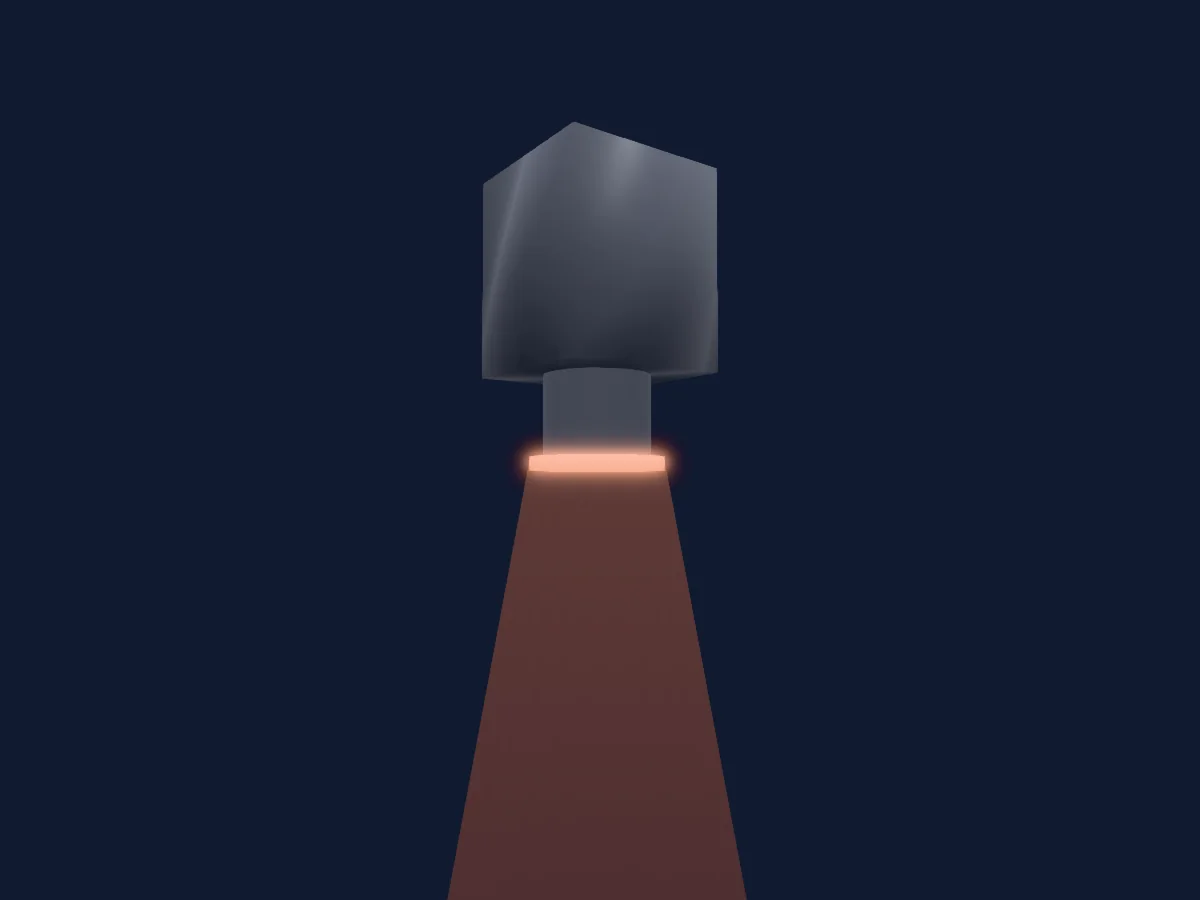
OXO Light COLORZOOM 180
6 / 9 / 14 DMX channels
PAR
OXO Light SunFlood 300
2 / 4 DMX channels
PAR
OXO Light Color Floor 100
16 / 18 DMX channels
PAR
OXO Light ColorFloor 100
4 / 6 / 16 / 18 DMX channels
PAR
OXO Light Colorzoom 420
5 / 6 / 13 / 16 / 18 DMX channels
Charts come from the fixture’s GDTF description as converted for the HitLight library. HitLight is not affiliated with OXO Light.