 HitLight
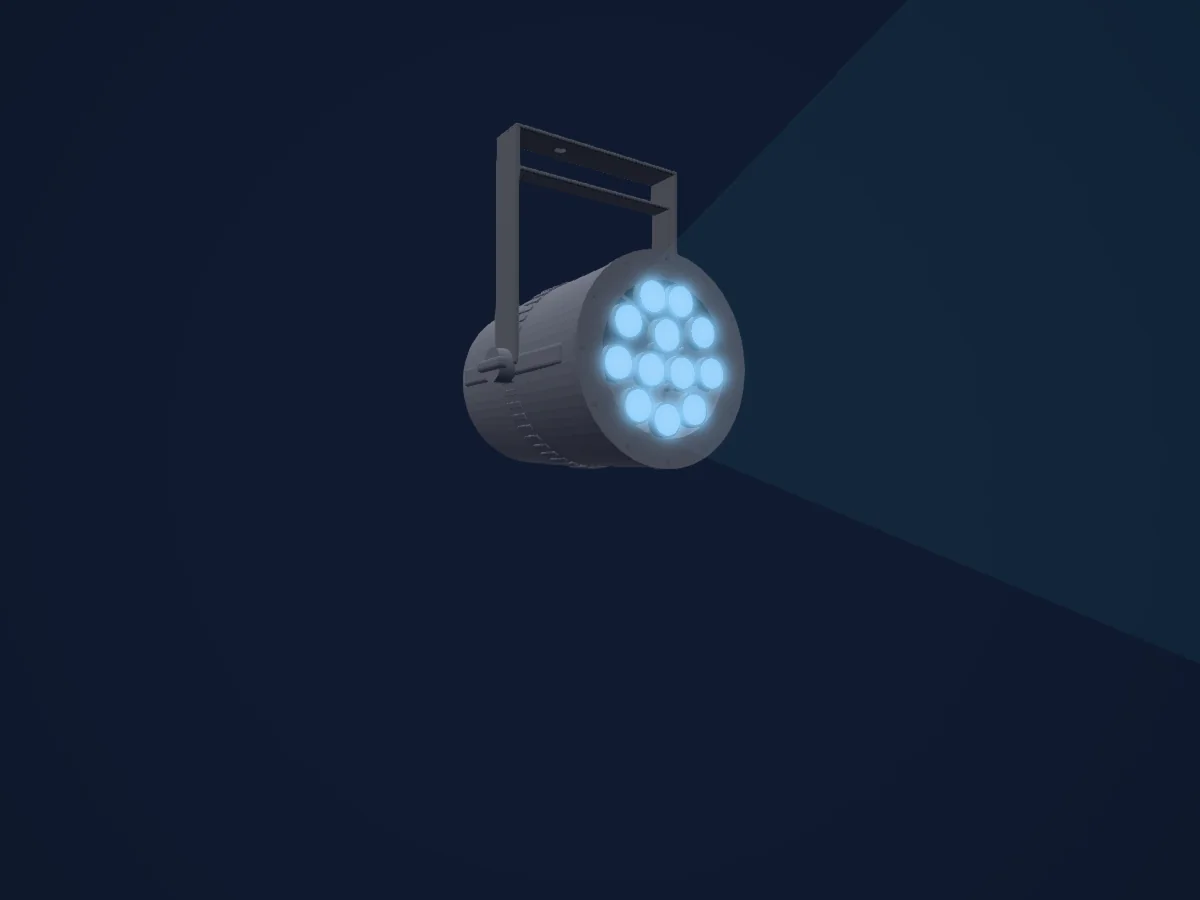
Prolights Versapar
DMX chart, 3 DMX modes and a 3D preview. 5 / 7 / 10 DMX channels.
What it can do
- Zoom
- Extra LED colours
- RGB colour mixing
- Colour wheel
- Strobe
- Dimmer
DMX modes and channel charts
| Mode | Channels | In HitLight |
|---|---|---|
| 5ch | 5 | Ready in HitLight |
| 7ch | 7 | Ready in HitLight |
| 9ch | 10 | Ready in HitLight |
5ch
Ready in HitLight5 DMX channels · Download this chart as CSV
| Channel | Function | Default | DMX values |
|---|---|---|---|
| 1 | Red | 255 | 0–255 |
| 2 | Green | 255 | 0–255 |
| 3 | Blue | 255 | 0–255 |
| 4 | White | 255 | 0–255 |
| 5 | Zoom | 128 | 3 value ranges
|
7ch
Ready in HitLight7 DMX channels · Download this chart as CSV
| Channel | Function | Default | DMX values |
|---|---|---|---|
| 1 | Dimmer | 0 | 2 value ranges
|
| 2 | Red | 255 | 0–255 |
| 3 | Green | 255 | 0–255 |
| 4 | Blue | 255 | 0–255 |
| 5 | White | 255 | 0–255 |
| 6 | Shutter / Strobe | 0 | 4 value ranges
|
| 7 | Zoom | 128 | 3 value ranges
|
9ch
Ready in HitLight10 DMX channels · Download this chart as CSV
| Channel | Function | Default | DMX values |
|---|---|---|---|
| 1 | Dimmer | 0 | 2 value ranges
|
| 2 | Red | 255 | 0–255 |
| 3 | Green | 255 | 0–255 |
| 4 | Blue | 255 | 0–255 |
| 5 | White | 255 | 0–255 |
| 6 | Color Macro1 | 0 | 2 value ranges
|
| 7 | Shutter / Strobe | 0 | 5 value ranges
|
| 8 | Color Effects1 | 0 | 7 value ranges
|
| 9 | Dimmer Mode | 0 | 5 value ranges
|
| 10 | Zoom | 128 | 3 value ranges
|
Use the Prolights Versapar in HitLight
- Open Add fixture and search for Prolights Versapar.
- Choose the DMX mode set in the fixture’s own menu. HitLight gives it the lowest free start address on its universe that fits the mode’s channel count.
- Check the mode and controls against your real fixture before live use.
Venues with the Prolights Versapar
Their saved rigs list this fixture model. Confirm the current equipment with the venue.
- Rotherham Civic Theatre Rotherham, United Kingdom
- Santana 27 Bilbao, Spain
Related fixtures
PAR
Prolights EclPendantNW_60
1 / 2 / 4 DMX channels
PAR
Prolights DigiStripIP50_FlatDiffuser
3 / 13 / 15 DMX channels
PAR
Prolights EclParDOTVW
1 / 2 / 3 / 4 / 9 DMX channels
PAR
Prolights EclPendantSTU_20
1 / 2 / 4 DMX channels
PAR
Prolights MosaicoFX100FC_LWTW
13 DMX channels
PAR
Prolights Solar 21
6 DMX channels
Charts come from the fixture’s GDTF description as converted for the HitLight library. HitLight is not affiliated with Prolights.
Fixture model: gdtf-prolights-versapar-116500
Creator: HitLight
Modifications: Original HitLight 3D housing: scripted parametric geometry modelled by HitLight from public product photos and the manufacturer's published dimensions. No manufacturer imagery, CAD, meshes or GDTF models are redistributed.