 HitLight
Ayrton MagicDot Neo
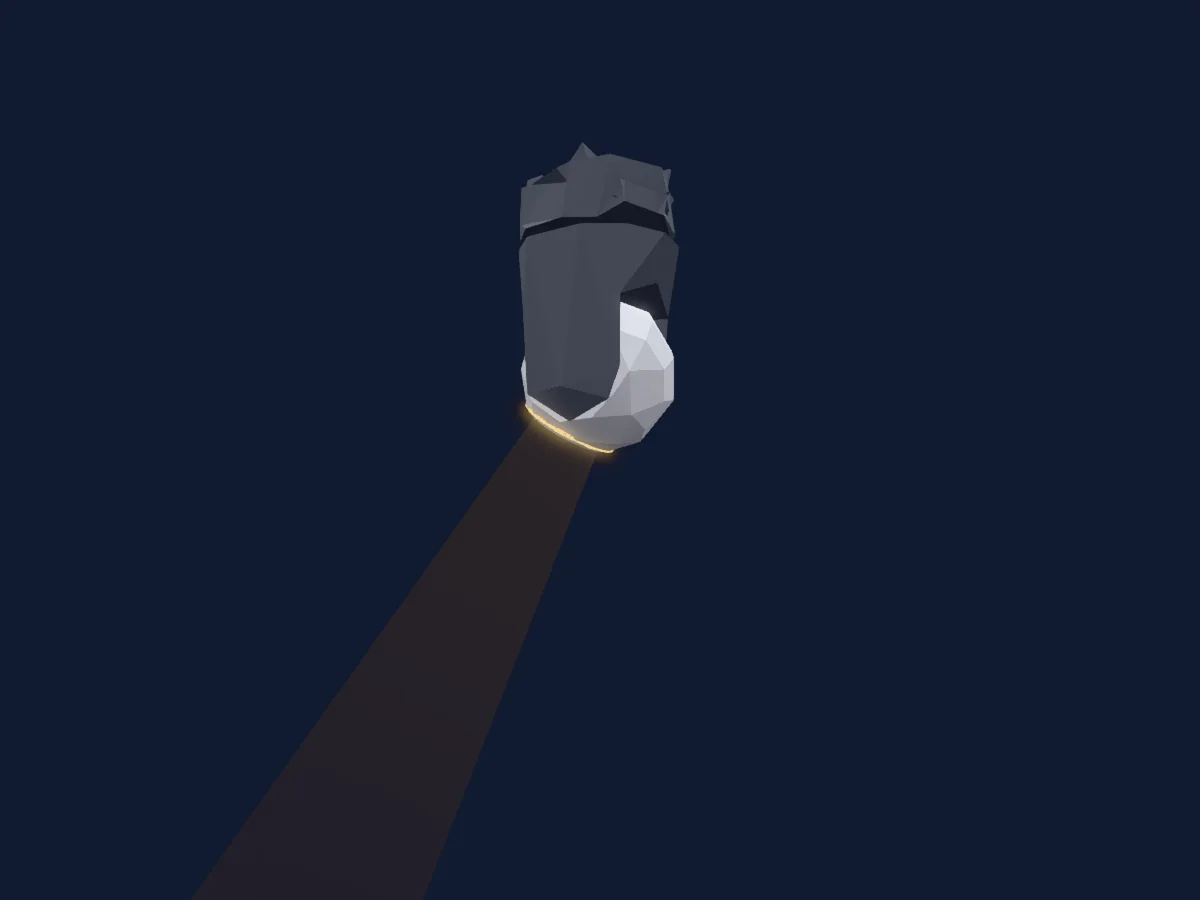
DMX chart, 2 DMX modes and a 3D preview. 35 DMX channels.
What it can do
- Zoom
- Extra LED colours
- Colour temperature
- Strobe
- Dimmer
- Pixel control
- Pan and tilt
Safety-relevant functions: Fixture reset · Service functions · Strobe. Check how these behave on your own fixture before a show.
DMX modes and channel charts
| Mode | Channels | In HitLight |
|---|---|---|
| Extended_540 | 35 | Ready in HitLight |
| Extended_540_Pixel | 35 | Ready in HitLight |
Extended_540
Ready in HitLight35 DMX channels · Download this chart as CSV
| Channel | Function | Default | DMX values |
|---|---|---|---|
| 1 | Pan | 128 | 0–255 |
| 2 | Pan Fine | 0 | Fine byte of Pan |
| 3 | Tilt | 128 | 0–255 |
| 4 | Tilt Fine | 0 | Fine byte of Tilt |
| 5 | Pan Rotate | 0 | 7 value ranges
|
| 6 | Tilt Rotate | 0 | 7 value ranges
|
| 7 | Tint | 0 | 2 value ranges
|
| 8 | Red | 255 | 0–255 |
| 9 | Red Fine | 255 | Fine byte of Red |
| 10 | Green | 255 | 0–255 |
| 11 | Green Fine | 255 | Fine byte of Green |
| 12 | Blue | 255 | 0–255 |
| 13 | Blue Fine | 255 | Fine byte of Blue |
| 14 | Color Add GY | 255 | 0–255 |
| 15 | Color Add GY Fine | 255 | Fine byte of Color Add GY |
| 16 | Shutter / Strobe | 32 | 14 value ranges
|
| 17 | Dimmer | 0 | 2 value ranges
|
| 18 | Dimmer Fine | 0 | Fine byte of Dimmer |
| 19 | C TC | 0 | 3 value ranges
|
| 20 | Zoom | 128 | 3 value ranges
|
| 21 | Zoom Fine | 0 | Fine byte of Zoom |
| 22 | Control1 | 0 | 34 value ranges
|
| 23 | Dimmer | 0 | 0–255 |
| 24 | Dimmer Fine | 0 | Fine byte of Dimmer |
| 25 | Red | 255 | 0–255 |
| 26 | Green | 255 | 0–255 |
| 27 | Blue | 255 | 0–255 |
| 28 | Dimmer | 0 | 0–255 |
| 29 | Red | 255 | 0–255 |
| 30 | Green | 255 | 0–255 |
| 31 | Blue | 255 | 0–255 |
| 32 | Liquid Patterns | 0 | 0–255 |
| 33 | Liquid Speed | 0 | 0–255 |
| 34 | Liquid Size | 128 | 0–255 |
| 35 | Liquid Control | 0 | 3 value ranges
|
Extended_540_Pixel
Ready in HitLight35 DMX channels · Download this chart as CSV
| Channel | Function | Default | DMX values |
|---|---|---|---|
| 1 | Pan | 128 | 0–255 |
| 2 | Pan Fine | 0 | Fine byte of Pan |
| 3 | Tilt | 128 | 0–255 |
| 4 | Tilt Fine | 0 | Fine byte of Tilt |
| 5 | Pan Rotate | 0 | 7 value ranges
|
| 6 | Tilt Rotate | 0 | 7 value ranges
|
| 7 | Tint | 0 | 2 value ranges
|
| 8 | Red | 255 | 0–255 |
| 9 | Red Fine | 255 | Fine byte of Red |
| 10 | Green | 255 | 0–255 |
| 11 | Green Fine | 255 | Fine byte of Green |
| 12 | Blue | 255 | 0–255 |
| 13 | Blue Fine | 255 | Fine byte of Blue |
| 14 | Color Add GY | 255 | 0–255 |
| 15 | Color Add GY Fine | 255 | Fine byte of Color Add GY |
| 16 | Shutter / Strobe | 32 | 14 value ranges
|
| 17 | Dimmer | 0 | 2 value ranges
|
| 18 | Dimmer Fine | 0 | Fine byte of Dimmer |
| 19 | C TC | 0 | 3 value ranges
|
| 20 | Zoom | 128 | 3 value ranges
|
| 21 | Zoom Fine | 0 | Fine byte of Zoom |
| 22 | Control1 | 0 | 34 value ranges
|
| 23 | Dimmer | 0 | 0–255 |
| 24 | Dimmer Fine | 0 | Fine byte of Dimmer |
| 25 | Red | 255 | 0–255 |
| 26 | Green | 255 | 0–255 |
| 27 | Blue | 255 | 0–255 |
| 28 | Dimmer | 0 | 0–255 |
| 29 | Red | 255 | 0–255 |
| 30 | Green | 255 | 0–255 |
| 31 | Blue | 255 | 0–255 |
| 32 | Liquid Patterns | 0 | 0–255 |
| 33 | Liquid Speed | 0 | 0–255 |
| 34 | Liquid Size | 128 | 0–255 |
| 35 | Liquid Control | 0 | 3 value ranges
|
Use the Ayrton MagicDot Neo in HitLight
- Open Add fixture and search for Ayrton MagicDot Neo.
- Choose the DMX mode set in the fixture’s own menu. HitLight gives it the lowest free start address on its universe that fits the mode’s channel count.
- Check the mode and controls against your real fixture before live use.
Related fixtures
Moving head
Ayrton WildSun S25
14 / 22 / 24 / 64 / 66 DMX channels
Moving head
Ayrton MiniBurst
12 / 13 / 14 DMX channels
Moving head
Ayrton MagicPanel FX
18 / 19 / 22 DMX channels
Moving head
Ayrton Nando 1202
26 / 37 / 38 / 50 DMX channels
Moving head
Ayrton WildSun 200s
65 DMX channels
Moving head
Ayrton MagicDot XT
17 DMX channels
Charts come from the fixture’s GDTF description as converted for the HitLight library. HitLight is not affiliated with Ayrton.